Wednesday, 13 October 2010

OpenSim commands


You can type commands into the OpenSim window. It can be a bit daunting if you are not used to 'command line' applications, and although there is a possibility that you might completely wipe everything that you've made, the chances of doing it by accident are very slim (hint: avoid any commands that include the word 'delete').

To list the available commands type: help
To create a flat terrain (taken from Roger Stack) type: terrain fill 21
If you're tired of being Test User type: create user firstname lastname
When you're finished and want to shut down type: quit

Note that permissions are ignored by default, so even if you login as a different avatar you will still be able to modify everything that's there. You won't have access to the other avatar's inventory though - unless you feel brave and use the IAR system to transfer it.

Running OpenSim from USB


With Linden Labs pushing out educators there have been an increasing number of blog posts regarding OpenSim. What caught my attention were the guides to running OpenSim from a USB stick, such as the one by Roger Stack. Although very comprehensive and probably the best way of doing things, it's quite complicated, and we should be showing educators how easy it can be.

And so, the easy way:
  1. Go to http://opensimulator.org/wiki/Download
  2. Download the zip file under the 'Binary Packages' heading, and extract it somewhere
  3. In the Bin folder, run OpenSim.exe (OpenSim.32BitLaunch.exe on 64 bit machines)
  4. Eventually you'll be asked for a region name - enter something
  5. For everything else just keep pressing Enter to accept the default settings
  6. Wait until it says: Region (the name you entered) #
That's it. You now have a locally running OpenSim server. Copy the bin folder to any location where you want to run the server from (including a USB stick). Always remember to close the server correctly by typing quit.


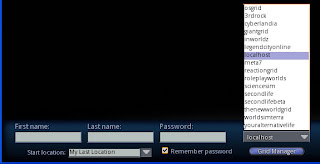
Connecting to the server is also easier than some have described. Don't bother messing around with shortcuts; viewers such as Imprudence and Kirstens allow you to pick 'localhost' from a drop-down list:


Assuming you went along with the default values you can login with first name: Test, last name: User, and leave the password field blank.


Monday, 22 February 2010

Linden Lab's war on games continues

Linden Labs recently over-hauled their forums. I'll ignore the fact that it's broken for now, since they're sure to fix it at some point.

However, the first thing that I noticed was the fact that the games section of the forum has been removed. It's true that it didn't get too much activity, and that might have been their selection criteria when moving between systems, but it certainly doesn't help the gaming community.

Monday, 15 February 2010

Forensic House Update

Just a quick update on the forensics simulation. A bit of surrounding detail has been added to the bedsit environment to add context (see below). The crime scene is now in the basement of the central building.


Shown below is the view when you first walk in; although because of the enclosed nature of the environment you'd actually have to be in 1st person view. There's still a little bit of work to be done to create a more realistic setting.


Various important objects have MCQ quizzes attached; and a feedback board has been added to indicate which quizes were attempted, and whether or not a 100% score was achieved.

Monday, 11 January 2010

Educational tools in OpenSim

My first batch of educational tools for use in OpenSim has been released, and is available at:

http://thoughtfulmonkey.com/eduset/

It's an IAR file, which allows you to load the objects into your inventory without affecting any existing build.

I'll also be adding in some tutorial videos to show how the tools work. The sound is a bit low on the first offering, but you get the idea. If you have any suggestions or problems then feel free to voice them in the comments (it's moderated so they won't appear straight-away).

Thursday, 8 October 2009

Educational tools in SL

I've just finished compiling a list of educational tools available in Second Life. You can view the Google Doc here:

http://docs.google.com/Doc?docid=0AbJhUXLbxPT9ZGY0NDNwM3pfNmhwbTVxZGMy&hl=en

Friday, 2 October 2009

AIMLBot and Open Metaverse

To remove any hard work in creating a chat bot using Open Metaverse, I performed a search for C# AIML parsers. Top of the list was AIMLBot (http://aimlbot.sourceforge.net/), and after a bit of poking around they seem to work well together.


There was some head scratching because the chat example on the Open Metaverse page (http://lib.openmetaverse.org/wiki/Respond_to_inworld_chat) seems to be out of date - the LL prefix from LLUUID and LLVector3 seem to have been dropped. The AIMLBot also doesn't come with the xml and aiml files needed, but I just took those from Radegast.

As it stands the chat call back is fired whenever anyone starts typing nearby, and when it hears itself. My slap-dash solution is included below:


static void Self_OnChat(string message, ChatAudibleLevel audible,
ChatType type, ChatSourceType sourceType, string fromName,
UUID id, UUID ownerid, Vector3 position)
{
if (message != "")
{
if (fromName != "Test Bot")
{
//process chat here
AIMLbot.Request request = new AIMLbot.Request(message,
myUser, myBot);
AIMLbot.Result reply = myBot.Chat(request);

Client.Self.Chat(reply.Output, 0, ChatType.Normal);
Console.WriteLine(reply.Output);
}
}
}


That's the main component of the chat bot, so you can see that it is very easy to implement.