Showing posts with label OpenSim. Show all posts

Wednesday, 19 January 2011

2 days of presentations

2 days, 2 presentations - both on Second Life. The first a joint presentation in an arts-focused seminar, based on the virtual theatre work, the second a presentation to built environment educators and trainers on the University's virtual quarry.

Common to both was the advice that anyone looking into using immersive simulations in their teaching, should make OpenSim their first choice. I'd guess that it's common advice circulating through the educational sector. At a time when funding is being cut to the point that jobs are being lost, there's no way of justifying the cost of 'trying it out'.

A model is starting to form in my mind where institutions jointly hire some hosted OpenSim land, and collaborate to produce a learning activity. And then when it's complete each institution takes a copy to use on their own local servers, run when required. We're entering times where the efficient use of resources is paramount.

Monday, 13 December 2010

Results of OpenSim/SL Exercise

Last week we ran the SL/OpenSim activity for directing actors. The overall aim was for students to work in groups to plan out the stage direction for a piece of dialogue from Hamlet that only involved Hamlet and Ophelia, and then present their plan to the rest of the class. Virtual representations of the Globe theatre were used both as planning tools and the source of screenshots to use in their presentations.

There were 4 groups. At any one time only 1 group was in Second Life, and 1 was in OpenSim. They took it in turns, so ultimately 2 groups used OpenSim and 2 used Second Life.

The OpenSim setup is shown in the diagram below (the Second Life setup was identical, except that they connected to the Linden server instead of another PC in the room). Each group had 3 PCs, with two group members controlling the actors, and the remaining group members huddled around the 'director' PC. ((No it isn't the official Imprudence logo, but it's one of the variations that I prefer))

So how did it go? Put simply, very well. From the student experience point of view SL and OpenSim use was near-identical - one student did comment on OpenSim's tendency to flick the avatar's feet up to waist height occasionally. There were no crashes in either setup, and nothing noticeably weird happened. However a few general points did arise:


Getting to grips with SL

An issue that often arises in virtual world activities is the overhead in learners getting to grips with the technology. If anything we experienced the opposite effect. We bypassed all of the account creation/teleportation/inventory issues by providing ready-made avatars en-situ. Actors were on stage suitably dressed and the director was in the 'pit'. Actor controls were just the arrow keys to move around; the director controls were camera adjustment and screenshot taking. This wasn't enough for the students as they experimented with flying, text chat, and using gestures to act out parts of the dialogue.

It should be said that these were English Literature students, with a voiced aversion to 'techie' things. Some of the challenges experienced in introducing SL activities might be caused by exposure to too much early on. The group structure also provided peer support and allowed 'back-seat drivers'.


Phychomotor vs Affective learning

The activity was very successful in terms of students being able to use the technology as an assistance, rather than hindrance, in planning their stage direction. However, it seemed to be a less successful activity in terms of leading to an affective change in their understanding of Virtual World (VW) uses. There seemed to be a lack of imagination or extrapolation as to how VWs might be used in other areas.

This is probably a symptom of how the activity was designed. Removing distractions limited their view of the bigger picture. It's something that will be addressed in any future activities, but I'll wait to see what appears in the students' reflective journals before passing judgement.

Tuesday, 23 November 2010

First OpenSim project?

Although I've experimented with OpenSim, and created a few generic educational tools, we haven't used it in a project at the University yet. Although we might do in the very near future.


Shown above are characters on the stage of our virtual Globe Theatre. A previous activity involved students positioning the mannequins (foreground) to explore issues of actor positioning and movement during a scene. To give a better understanding of the affordances of Second Life, it was decided to replace the mannequins with student controlled avatars (centre). This probably seems like an obvious decision to users of Second Life, but the students in question are being introduced to and using Second Life in a single session, and we wanted to reduce distractions from the core activity (navigation issues, creating logins etc). As a compromise we'll be providing pre-made accounts where avatars start in the right locations.

However, a challenge is that the class will need to be divided into groups for the activity and there is only one theatre. There isn't space on the island to duplicate it, and so hopefully OpenSim can come to the rescue.


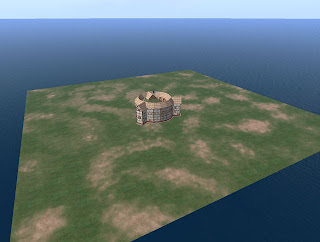
Our Globe Theatre was created by a developer in our department, and so we were able to export it to OpenSim fairly easily (see image above). The costumes are an entirely different matter, as they were produced by Karen Royer. Even large parts of the mannequins are purchased pieces.

This is a major issue in the educational use of OpenSim, which several people have highlighted. Generally speaking most academics don't have the time or ability to create good quality virtual environments. Even if they could, constantly rebuilding things that others have already made is wasted effort. Thankfully some resources are appearing, such as myOpenSim, although I'd prefer if they did away with the concept of pretend money.

Friday, 19 November 2010

Trying Diva - Part 2: wifi

Just a quick update to post some thoughts on the web interface supplied with Diva. The bottom line is that it's sole purpose at the moment is to administer accounts, and it does that well. It looks quite nice too.


I can definitely see the benefits of allowing people to register their own accounts, even in a stand-alone, classroom setting. However, there is potential to do a lot more. True, it also allows you to view your inventory, create folders and shuffle things around, but that's not particularly useful.

An alternative is the Opensim Webinterface - opensimwi (redux), as described here. It seems to have more features, including a more easily customisable front-end, but it looks a little dated. Out of the two I would probably still go with the Diva version.

A promising integration that was trialled a while back was linking Elgg to OSgrid. It was supposed to synchronise friends and groups between the two, and I'm sure it did when I registered some time ago, but it seems to have lost all of the functionality now. That's a shame.

I also remember hearing something about being able to buy things from other people's inventories. I'd like to see something like XStreetSL linked into the OpenSim database so that you can just list something as for sale in your inventory, and it would appear for sale in a web listing.

Wednesday, 10 November 2010

Trying Diva

I finally got around to trying the diva distribution of OpenSim. I followed the instructions available here, which actually weren't as complicated as it seemed at first glance. So long as you follow it step by step then it's pretty fool-proof. Although I've had previous experience with both OpenSim and an equivalent of MoWeS called XAMP, so I'd be interested to hear about other people's experiences.

One step that did look as though it could be a lot simpler was the setup of the MySQL server. My recommendation would be that at the point when you're choosing Apache2, MySQL5 etc in the MoWeS mixer (pretty much the first step in the instructions), that you also select PHPMyAdmin in the Application software section.

In step 1, after you get confirmation that Apache and MySQL is running, open a web browser and go to: http://localhost/phpmyadmin/

In the window that opens click on the Privileges tab (shown as 1 in the image).


Enter a User name of opensim, set a password (including retyping it), as shown in 2. Then select the radio button option to create a database with the same name, as shown in 3. That's it. No use of command prompts or typing in unfamiliar strings of text.


I've only had a brief play so far, but I'm looking forward to trying out the web interface and sending things flying around the Megaregion. My only concern was that I couldn't connect to it from another PC. Whether this is due to permissions or the hard-coded local IP I don't know. Hopefully the former.

Thursday, 14 October 2010

Running a LAN grid


I don't want to clutter this post with the background reasoning, but I would argue that the majority of educational uses of virtual worlds can be addressed by running 1 student per grid, or ad-hoc multi-user set-ups. The second of those seems to be a lot easier now than the last time that I tried it.

The instructions in this post will allow you to set-up a loca
l OpenSim grid, for use within an institution's firewall. You can walk into a lab, start the server on one PC, and have the students connect to it through other PCs.

Server setup:
  1. Download OpenSim and run it once in order to configure it - as described here.
  2. You will need to use the 'create user' command to create an account for each student.
  3. Copy the 'bin' folder to a USB stick.
Running the server:
  1. Plug in the USB stick
  2. Run OpenSim.exe (OpenSim.32BitLaunch.exe on 64bit machines).
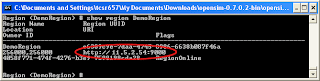
  3. **Update** In the OpenSim window, type: 'show region regionName'.
  4. Note down the text that starts with http://
If you've forgotten the name that you gave to your region, then it is shown in brackets within the OpenSim window, i.e. Region (regionName) #


Viewer setup:
  1. If you already have Second Life viewers installed then skip to the next bit
  2. Alternatively you can install a viewer on any PC, and then copy the viewer's folder from the 'Program Files' directory (typically on the C drive) onto a USB stick. The just run the executable in this folder.
You (or the students) will need to configure the viewers so that they connect to your server. If the server is run from the same PC each time, then you should only need to do this once.

Running the viewer (easy way):
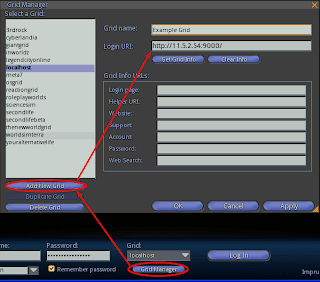
  1. Viewers such as Imprudence and Hippo include a grid manager where the ip address of the server can be added. Be sure to include 'http://' at the front and ':9000' at the end.

Running the viewer (slightly harder):
  1. Copy your existing shortcut to the viewer (assuming it's installed - if running from a USB right-click on the exe and choose 'create shortcut').
  2. Right-click on the new shortcut and choose 'Properties'.
  3. On the 'Shortcut' tab, look for the 'Target' option.
  4. At the end of the text in the 'Target' box add: '-loginuri http://11.5.2.54:9000/' where 11.5.2.54 is the ip address of the server.

There is of course a huge variety in networks and institutional setups, but hopefully these steps should work in most cases. You should consider involving your IT or eLearning department when trying to setup OpenSim in this way. They probably won't like running things from USB sticks, but their alternative might be a more robust system.

Wednesday, 13 October 2010

OpenSim commands


You can type commands into the OpenSim window. It can be a bit daunting if you are not used to 'command line' applications, and although there is a possibility that you might completely wipe everything that you've made, the chances of doing it by accident are very slim (hint: avoid any commands that include the word 'delete').

To list the available commands type: help
To create a flat terrain (taken from Roger Stack) type: terrain fill 21
If you're tired of being Test User type: create user firstname lastname
When you're finished and want to shut down type: quit

Note that permissions are ignored by default, so even if you login as a different avatar you will still be able to modify everything that's there. You won't have access to the other avatar's inventory though - unless you feel brave and use the IAR system to transfer it.

Running OpenSim from USB


With Linden Labs pushing out educators there have been an increasing number of blog posts regarding OpenSim. What caught my attention were the guides to running OpenSim from a USB stick, such as the one by Roger Stack. Although very comprehensive and probably the best way of doing things, it's quite complicated, and we should be showing educators how easy it can be.

And so, the easy way:
  1. Go to http://opensimulator.org/wiki/Download
  2. Download the zip file under the 'Binary Packages' heading, and extract it somewhere
  3. In the Bin folder, run OpenSim.exe (OpenSim.32BitLaunch.exe on 64 bit machines)
  4. Eventually you'll be asked for a region name - enter something
  5. For everything else just keep pressing Enter to accept the default settings
  6. Wait until it says: Region (the name you entered) #
That's it. You now have a locally running OpenSim server. Copy the bin folder to any location where you want to run the server from (including a USB stick). Always remember to close the server correctly by typing quit.


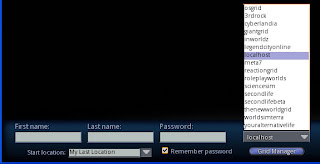
Connecting to the server is also easier than some have described. Don't bother messing around with shortcuts; viewers such as Imprudence and Kirstens allow you to pick 'localhost' from a drop-down list:


Assuming you went along with the default values you can login with first name: Test, last name: User, and leave the password field blank.


Monday, 11 January 2010

Educational tools in OpenSim

My first batch of educational tools for use in OpenSim has been released, and is available at:

http://thoughtfulmonkey.com/eduset/

It's an IAR file, which allows you to load the objects into your inventory without affecting any existing build.

I'll also be adding in some tutorial videos to show how the tools work. The sound is a bit low on the first offering, but you get the idea. If you have any suggestions or problems then feel free to voice them in the comments (it's moderated so they won't appear straight-away).

Friday, 25 September 2009

Creating Bots for SL/OpenSim

If you have any exposure to Second Life culture, then you will hear discussions about 'bots' - which are simply avatars controlled by computers, rather than by real human beings. For example, when you perform a search for places in SL, the results are ordered based on traffic, with the places that have had the most visitors listed at the top. Some unscrupulous people used bots to inflate their traffic stats to move up the search list. Also, how do you know that the preset grinding sequence of the SL stripper you just paid was initiated by a person and not a computer? Do you care? Should you care? Why are you there?

Regardless of the controversies, bots are very useful as NPCs. Compared to the alternative on in-world modelled and scripted bots, out-world bots will generally look better (using the avatar mesh and any of the high-quality garments and animations you choose to purchase) and have potentially better AI. I will now share with you the knowledge gained from a brief investigation into how to create these bots, with specific consideration to OpenSim.

Important note: Every bot neads a valid login account.

Easy-Peasy Method:

The Radegast client (http://radegastclient.org/wp/) is a non-graphical client for SL. It supports almost everything you might want to do in SL, except look at it, and also includes a built-in AI agent based on A.L.I.C.E. You just turn it on as a setting, and when anyone enters chat nearby that includes the avatar's firstnname (this is very important), then Alice will repond.

I.e. If you log in as Rupert Marmaduke, and somebody says "Hello Rupert Marmaduke" or "Hello Rupert", then they will illicit some suitable response.

For OpenSim, you will need to set a URL and port in order to connect (e.g. http://127.0.0.1:9000).

Personalising Radegast (Maybe):

As mentioned the Radegast chat-bot is built upon A.L.I.C.E, which uses aiml definitions. Basically these are xml files, listing patterns (what the user might say) and templates (how the bot might respond). For example:

<category>
<pattern>TELL ME ABOUT YOURSELF</pattern>
<template>I am a natural language chatterbot, that talks to people via computer networks such as the Internet.</template>
</category>

You can conceivably modify the aiml files that come with Radegast (stored in Program Files\Radegast\aiml) as you see fit. Whatever you put in the template section is regurgitated whenever the pattern is matched. I have not tried this, but I'm 90% sure that it would work.

Getting Complex: OpenMetaverse

If you want to get your hands dirty then you can download a C# library called Open Metaverse - and it is what Radegast was built upon. There are plenty of examples provided, and it is very easy to get an avatar to login and say something (i.e. follow 5 instructions then copy and paste). Capturing the surrounding chat and responding intelligently is obvioulsy the biggest challenge.

By default the library connects to SL, but you can switch to any grid using:

client.Settings.LOGIN_SERVER = "http://osgrid.org:8002/";
Full details are given here: http://lib.openmetaverse.org/wiki/How_to_create_a_basic_libopenmv_bot_for_osgrid%3F

Friday, 19 June 2009

Using the Meerkat viewer


Shown above is the Cannons and Castles game, ported from SL to a local OpenSim grid using the new Meerkat viewer (discussed in several places). It's fairly fast and pain free, but doesn't carry over scripts - and may never be able to.

It looks like a great option for people to backup work, create locally and then upload to SL, or to flee the sinking ship (2 years of sinking and still no change in the water line).

Interestingly the data is saved to an xml format, which is likely to lead to an explosion in tools for procedurally generating content, file conversion and import/export plugins. It looks to be a much more elegant solution than current systems.

Tuesday, 7 April 2009

General update

The store at Wild Hollow has gone, but the one at Celebration remains.

I recently started a new job, which includes some occasional SL work, but which doesn't leave much time for game development. Although as part of it I have been looking more closely at other Virtual World platforms; of which the SL clones seem most promising at this point. Once you've replaced the default physics engine in OpenSim, it seems to work fairly well; while RealXtend looks good, but its graphics rendering causes problems with my work and home PCs.

Expect to see some OpenSim-based game update coming soon.